crispy
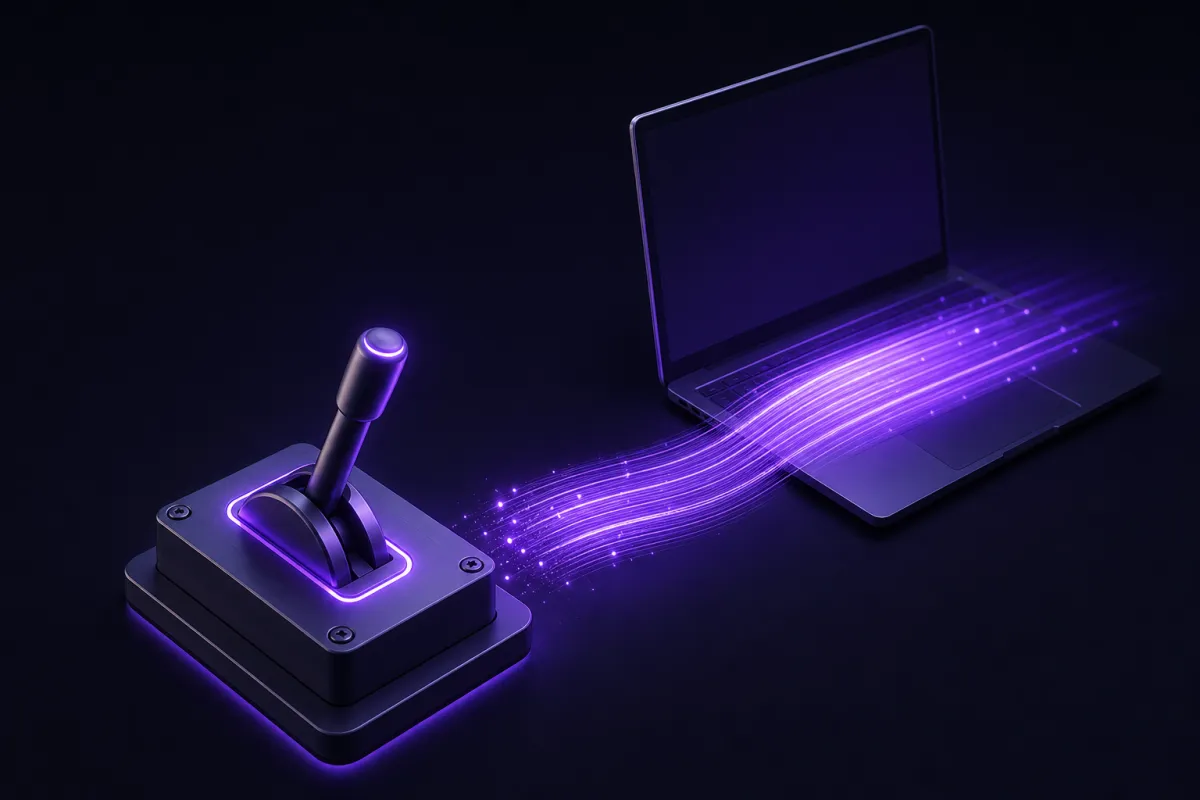
A VPN kill switch is a safety setting that blocks internet traffic if your VPN connection drops, so your device does not quietly fall back to your regular network. If you searched for what is a VPN kill switch, the short answer is that it is a leak-prevention guard for moments when the encrypted VPN tunnel is not available.
It is most useful on public Wi-Fi, while moving between networks, after a laptop wakes from sleep, or when switching VPN servers. A kill switch is not a magic privacy shield, but it can close one of the most common gaps in everyday VPN use: the few seconds when traffic might otherwise leave outside the VPN.
Kill switch VPN meaning: what it actually does
The plain kill switch VPN meaning is simple: if the VPN connection is interrupted, the kill switch stops network traffic until the VPN reconnects or until you turn the setting off. Instead of letting apps continue over your normal internet connection, it forces a pause.
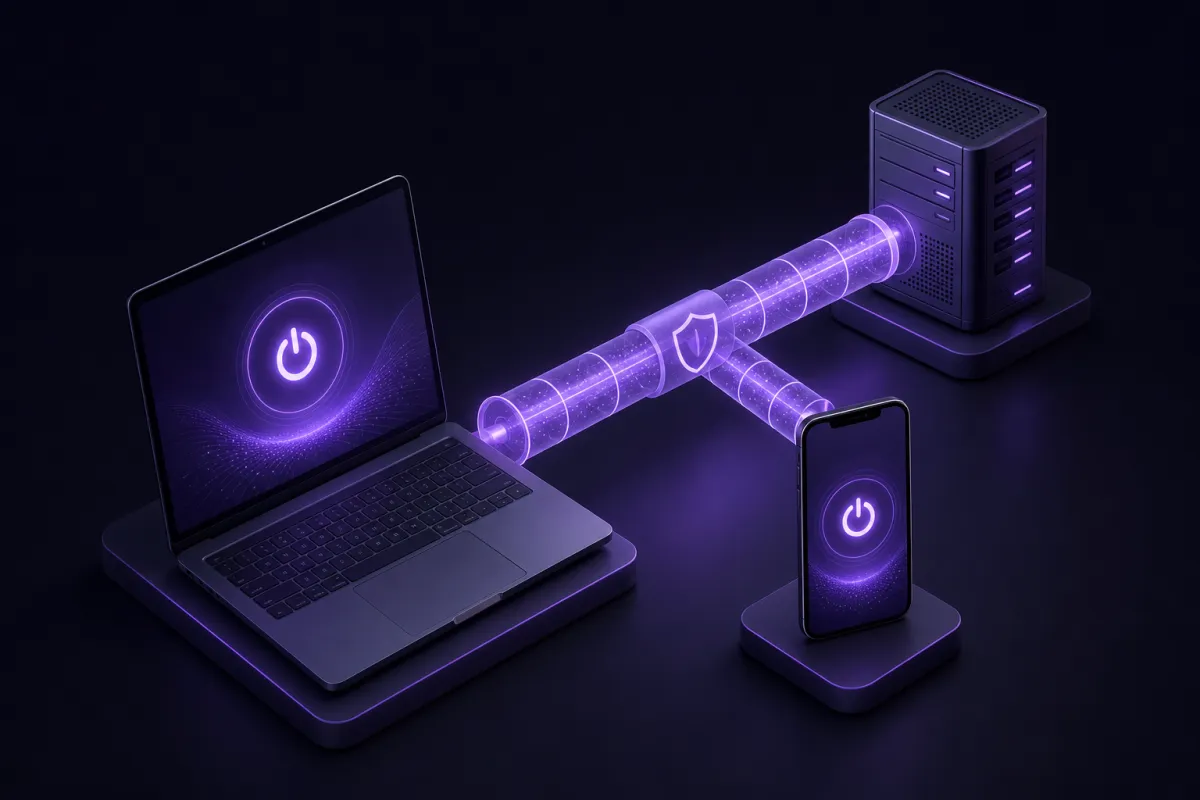
That matters because a VPN changes how your traffic leaves your device. When connected, your traffic travels through an encrypted tunnel to a VPN server, and websites see the VPN server address rather than your direct connection. If the tunnel drops, your device may instantly resume using your home, office, or mobile network. That can expose your real IP address to websites or services that were open at the time.
A kill switch is not the same thing as encryption. The VPN protocol handles the tunnel itself. The kill switch is a policy for what should happen when that tunnel is unavailable. Think of it as a circuit breaker. It does not make the VPN faster, and it does not make you anonymous. It simply prevents traffic from continuing in the wrong state.
If you are still learning the basics, start with what a VPN is and then come back to the kill switch. The feature makes more sense once you understand the difference between protected VPN traffic and ordinary direct traffic.
When traffic can leak without a VPN kill switch
A VPN connection can drop for ordinary reasons. Most drops are not dramatic failures. They are routine network changes that happen while your device is doing exactly what it was designed to do.
Wi-Fi changes
If you walk from one room to another, leave a coffee shop, switch from office Wi-Fi to mobile data, or join a hotel network, your device may briefly lose its route to the VPN server. Without a kill switch, open apps can reconnect over the new network before the VPN tunnel is ready again.
Sleep and wake
Laptops and phones save power by suspending network activity. When they wake, the operating system often restores the internet connection first, then apps start refreshing mail, messages, tabs, and cloud sync. A kill switch helps keep that burst of activity from using the regular connection while the VPN is still reconnecting.
Server switching
Changing VPN servers usually requires the current tunnel to close before a new one opens. That gap may be brief, but traffic does not need much time to reveal an IP address. A kill switch blocks that gap so apps wait for the new VPN route.
Unstable networks
Public Wi-Fi, captive portals, weak hotel networks, and congested mobile hotspots can all cause short interruptions. If public networks are a regular part of your day, a kill switch pairs naturally with the habits covered in our guide to using a VPN on public Wi-Fi.
System-level vs app-level kill switches
Not every kill switch works at the same depth. The difference between system-level and app-level protection affects what gets blocked, how strict the protection is, and how much control you have.
System-level kill switch
A system-level kill switch works through the operating system networking layer or a VPN app's network controls. Its goal is to stop internet traffic across the device when the VPN is not connected. This is the stricter model because it can cover browsers, messaging apps, sync tools, games, and background services.
The trade-off is that it can feel blunt. If the VPN cannot reconnect, you may have no internet on that device until you reconnect the VPN, change settings, or disable the kill switch. That is the point, but it can surprise people who expect the internet to keep working no matter what.
App-level or browser-level kill switch
An app-level kill switch applies only inside a specific app or environment. A browser extension, for example, can protect traffic routed through that browser extension, but it does not control every app on the computer. This can be convenient if your main concern is web browsing, but it is not the same as a full-device block.
Neither model is automatically better for everyone. A journalist sending sensitive work files may prefer full-device blocking. Someone who only wants protection in a browser window may prefer a narrower control. The important thing is to know the scope before you rely on it.
Do I need a kill switch? A practical checklist
The question do i need a kill switch depends on how you use a VPN and how much a brief IP exposure would matter. Many people should turn it on, especially on laptops and phones that move between networks.
Use this checklist:
- Turn it on if you use public Wi-Fi. Airports, hotels, cafes, schools, and shared workspaces are exactly where connections can change or stall without warning.
- Turn it on if you leave apps running in the background. Email, cloud storage, messaging, browsers, and work tools may reconnect automatically after a network interruption.
- Turn it on if your VPN location matters for privacy. If you do not want a website to see your direct IP address during reconnects, a kill switch reduces that risk.
- Turn it on before switching VPN servers often. Server changes create predictable disconnect and reconnect moments.
- Consider leaving it off for low-risk streaming or casual browsing. If convenience matters more than leak prevention, the no-internet pause may feel unnecessary.
- Know how to disable it before troubleshooting. If your internet suddenly stops, the kill switch may be doing its job because the VPN is disconnected.
A kill switch also has limits. It does not stop malware, phishing, fingerprinting, or tracking by services you are logged into. It does not make you anonymous. For a broader privacy check, see our guide to testing whether your VPN is working.
VPN kill switch trade-offs: why your internet may stop
The main benefit of a kill switch is also its main inconvenience: no VPN can mean no internet. That is not a bug when the setting is active. It is the intended behavior.
This can happen when the VPN server is temporarily unreachable, your Wi-Fi requires a captive portal login, your device changes networks, or your app is waiting to reconnect. If you are not expecting it, the experience can look like a broken internet connection. In reality, the kill switch is blocking traffic because the VPN path is not ready.
There are a few practical ways to reduce frustration:
- Connect to the VPN after joining Wi-Fi. On hotel or airport networks, finish any sign-in page first, then connect the VPN and enable the kill switch.
- Keep your VPN app updated. Updates often improve reconnect behavior and operating system compatibility.
- Use nearby VPN locations when speed and stability matter. A closer server can reduce latency and may feel more stable for everyday browsing.
- Remember the setting during troubleshooting. If nothing loads, check whether the VPN is disconnected and the kill switch is active.
A kill switch can also make performance questions easier to diagnose. If your connection feels slow rather than blocked, the issue may be speed, distance, or network congestion instead. Our guide to why a VPN can slow down internet explains those factors separately.
How Crispy VPN handles kill switch by platform
Crispy VPN makes the kill switch opt-in. It is off by default, so you choose when the stricter no-leak behavior is worth the possible interruption. The exact control depends on the platform, because each operating system handles VPN networking differently.
iPhone and iPad
The iPhone and iPad apps include a kill switch. When enabled, it is designed to block traffic during VPN interruptions so apps do not fall back to the regular connection. Split tunneling on iPhone and iPad is handled separately by website, up to 20 sites, so do not confuse that with the kill switch.
Mac
The Mac app includes a kill switch for full-device protection while the VPN is expected to be active. If the VPN disconnects, traffic is blocked until the VPN reconnects or you change the setting.
Windows
The Windows app includes a kill switch, plus an optional Lockdown mode. Lockdown mode is stricter and is meant for users who want a more restrictive posture when the VPN is not connected.
Linux
The Linux app includes a kill switch. As on desktop platforms generally, that is useful for background services and terminal workflows that might otherwise continue sending traffic after a VPN interruption.
Android
Crispy VPN for Android uses the Android system controls rather than a separate in-app kill switch. To get kill switch behavior, use Android's Always-on VPN setting and enable Block connections without VPN. Those settings are provided by Android and apply at the system level.
Browser extensions
The Chrome, Edge, and Firefox extensions include a kill switch for browser extension traffic. This is useful for web sessions, but it should not be mistaken for whole-computer protection across every app.
Apple TV and Android TV
Crispy VPN TV apps for Apple TV and Android TV or Google TV do not have a kill switch. That is important if you expect TV traffic to pause automatically during a VPN interruption. On TV, the app is built for simple connection and sign-in, not strict leak-blocking controls.
You can get the apps and extensions from the Crispy VPN download page.
How to use a kill switch without breaking your connection
A kill switch is easiest to live with when you treat it as a deliberate privacy setting, not something to toggle randomly. Set it up when your network is stable, then test what happens when the VPN disconnects.
A simple setup routine looks like this:
- Install the right app for your device. Use the desktop, mobile, Linux, or browser version that matches how you actually browse and work.
- Connect to a VPN server. Confirm that normal browsing works before enabling stricter blocking.
- Enable the kill switch. On supported Crispy VPN apps, turn it on in the app settings. On Android, use Always-on VPN and Block connections without VPN.
- Test a controlled disconnect. Disconnect the VPN briefly and confirm that traffic stops instead of continuing normally.
- Reconnect and check your IP address. Visit an IP check page, such as What is my IP, and confirm that the visible address matches the VPN connection.
- Write down the recovery path. Know where the setting is so you can disable it temporarily if you need to sign in to a captive portal or troubleshoot a network.
If your internet stops later, do not panic. First check whether the VPN is connected. If it is not, reconnect it. If you are on a Wi-Fi network with a sign-in page, you may need to temporarily turn the kill switch off, complete the network sign-in, then turn the kill switch back on.