crispy
Yes, a VPN can slow down your internet because your traffic has to be encrypted, routed through a VPN server, and decrypted before it reaches its destination. In normal use, that overhead is often small, especially with a modern protocol like WireGuard, but it depends on distance, server load, your device, and the connection you already have.
The better question is not simply does a VPN slow down internet, but what kind of slowdown is normal, what causes unusual lag, and what you can do about it. This guide gives you the practical version: why speed changes, when a VPN can actually help, and the exact steps to try before blaming your provider.
Does VPN slow down internet speed? The honest answer
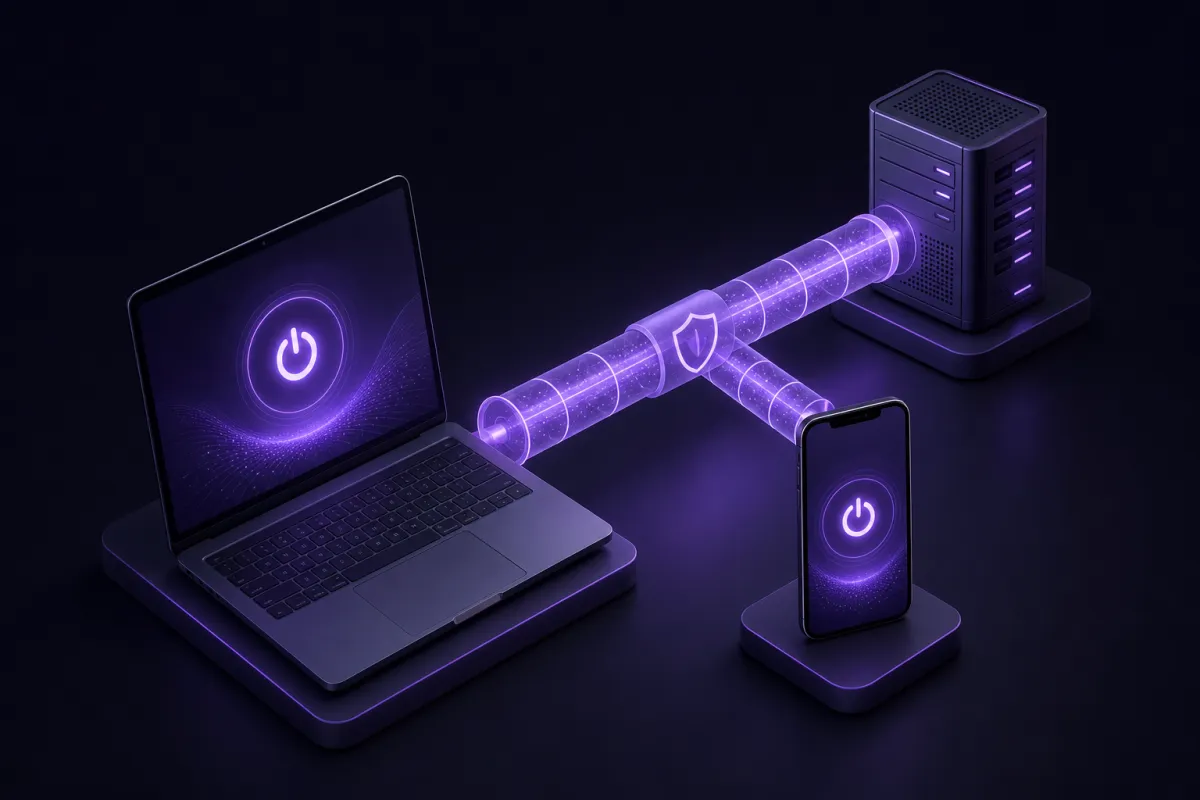
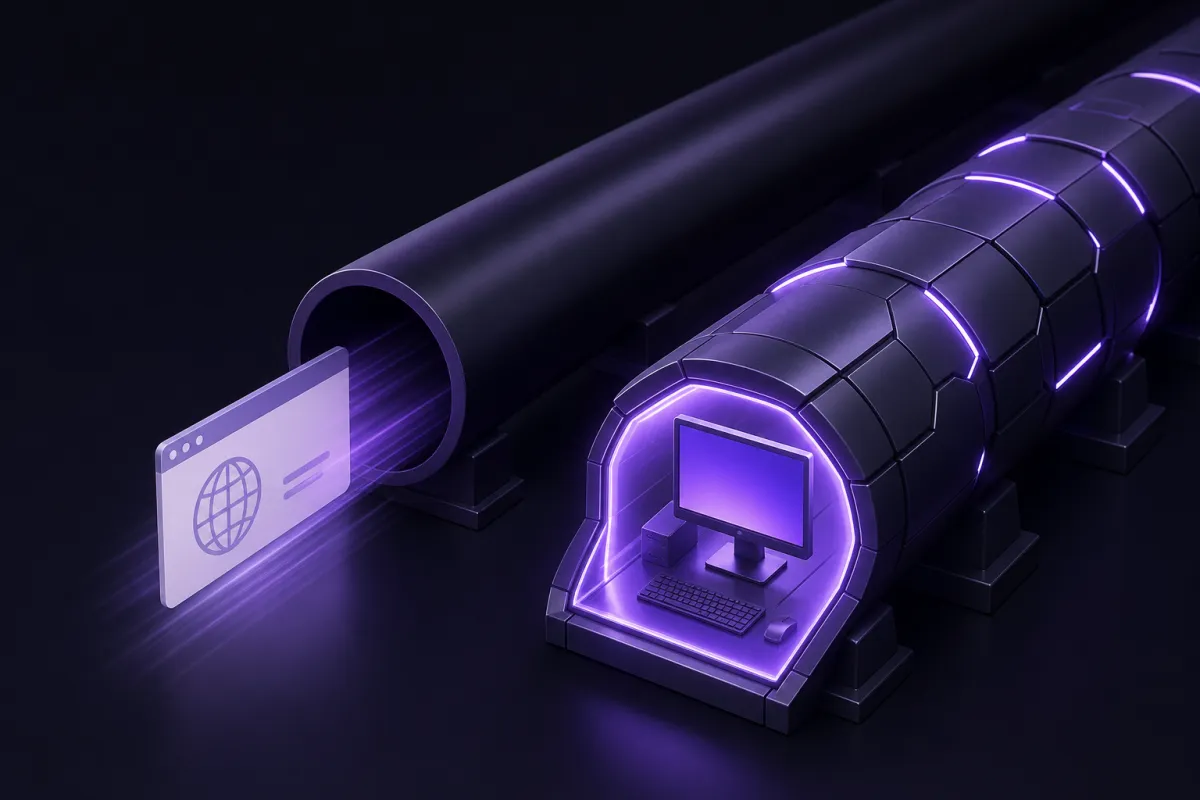
A VPN adds work to every connection. Your device encrypts data before it leaves, sends it to a VPN server, and the server forwards it to the website or app you are using. Replies come back through the same protected tunnel. That extra path is why some performance cost is normal.
That does not mean a VPN should make the web feel painfully slow. Browsing, messaging, streaming, video calls, and downloads can all work well through a VPN if the app, protocol, server, and local network are in good shape. If pages take a long time to start loading, video constantly buffers, or games feel unstable, something specific is probably wrong.
There are three common sources of slowdown:
- Encryption overhead: your device uses processing power to secure the connection.
- Distance: traffic usually takes longer to reach a faraway VPN location than a nearby one.
- Server and network conditions: congestion can happen on your Wi-Fi, your ISP route, the VPN server, or the destination service.
A VPN also does not upgrade the connection you pay your internet provider for. If your home internet is unstable, your phone has weak mobile signal, or your Wi-Fi router is overloaded, a VPN cannot magically fix that. It can only route traffic differently and protect the traffic inside the VPN tunnel.
What affects VPN speed
VPN speed is not one single thing. It is a mix of latency, download performance, upload performance, connection stability, and how quickly apps respond when you click or tap. A setup can look fine in one area and feel poor in another.
Distance to the VPN location
The farther your traffic travels, the more time each request needs. If you are in Europe and connect to a nearby European location, the route is usually shorter than sending all traffic across an ocean and back. For general browsing, the nearest reliable location is usually the best starting point.
The VPN protocol
The protocol controls how the tunnel is built and how encryption is handled. Older designs can work well, but they often carry more complexity. WireGuard is popular because it is modern, lean, and designed for efficient secure connections. If you want a deeper explanation, read what WireGuard is and why it matters for everyday VPN use.
Your device and battery mode
Phones, laptops, streaming boxes, and older desktops do not all handle encryption the same way. Battery saver modes can also limit background activity and network performance. If a VPN feels much slower on one device than another, the device itself may be part of the answer.
Wi-Fi quality
Many speed complaints are really Wi-Fi complaints. Thick walls, crowded apartment networks, old routers, weak signal, and interference can all create lag before your traffic ever reaches the VPN. A wired Ethernet connection, when available, is often more stable than Wi-Fi.
Server load and routing
Even a good VPN server can have busy moments. The wider internet is also constantly changing. A route that performs well in the morning may be less smooth later. Switching to another nearby location is one of the quickest tests.
Why WireGuard keeps the slowdown small
WireGuard is one of the main reasons a modern VPN can feel much lighter than older VPN setups. It has a small code base compared with many legacy protocols, uses modern cryptography, and is built to reconnect quickly as networks change.
That matters on phones and laptops. When you move from mobile data to Wi-Fi, close a laptop lid, ride a train, or walk through a building with weak signal, the VPN has to handle interruptions without turning every reconnect into a long wait. WireGuard is well suited to that kind of everyday use.
Crispy VPN uses WireGuard on every server, so you do not have to hunt through protocol menus just to get the modern option. The goal is simple: keep the protection of a VPN tunnel while reducing the extra work that can make older VPN configurations feel heavy.
WireGuard does not remove physics. A nearby server will usually feel better than a faraway one, and a congested home network will still be congested. But choosing a VPN built around WireGuard removes one common source of unnecessary overhead.
Does a VPN make your internet faster?
Does a VPN make your internet faster in normal use? Usually, no. A VPN does not increase your internet plan, improve a weak Wi-Fi signal, or give your device more processing power. If your connection is already clean and uncongested, the VPN layer normally adds a small amount of extra work.
There is one important exception: routing. Sometimes a VPN can be faster for a specific app, website, or type of traffic if your ISP is routing that traffic poorly or deprioritizing it. Because a VPN changes what your ISP can see and sends traffic through a different path, the result can be better in that particular situation.
This is most noticeable when only one activity is slow. For example, general browsing may be fine while a certain type of video, download, or service performs badly. Turning on a VPN can sometimes move that traffic onto a better route. It is not guaranteed, and it is not a license to ignore laws or service rules, but it is a real reason some people see improved performance with a VPN.
If streaming is the use case you care about, speed is only one part of the setup. Device support, location choice, and app reliability matter too. Crispy VPN has apps for phones, computers, Apple TV, Android TV and Google TV, plus browser extensions, and you can read more about the topic in our guide to using a VPN for streaming.
The fastest VPN setup is often the simplest one
People often search for the fastest VPN as if speed comes from one secret setting. In practice, the fastest setup is usually the boring one: a nearby location, a modern protocol, an updated app, and a stable local network.
Start with the server closest to your real location unless you have a specific reason to choose another. Shorter routes tend to reduce latency, which makes web pages start loading faster and makes calls or games feel more responsive. Crispy VPN offers 12 server locations across Europe, North America, and Asia Pacific, so most users should begin with the closest sensible option rather than the most distant one.
Use the full VPN app when you want device-wide protection. Use a browser extension when you only need browser traffic to go through the VPN. That can reduce unnecessary routing for apps that do not need the VPN tunnel. Crispy VPN has extensions for Chrome, Edge, and Firefox, and apps for iPhone, iPad, Mac, Windows, Linux, Android, Apple TV, Android TV, and Google TV. You can get the right version from the download page.
Do not turn on extra features unless you need them. Double-hop, for example, routes web traffic through two VPN servers on supported platforms. That can be useful for some privacy preferences, but it adds distance and complexity, so it is not the first choice when maximum speed is the goal.
Speed troubleshooting checklist
If your VPN feels slower than expected, work through these steps in order. The point is to change one thing at a time so you can tell what actually helped.
- Choose the nearest VPN location. Start with the closest location to you. If you chose a distant country for no specific reason, distance alone may explain the lag.
- Try another nearby location. If the closest server feels busy or unstable, switch to another practical location in the same region. Routes change, and a slightly farther server can sometimes perform better.
- Test wired Ethernet instead of Wi-Fi. On a laptop, desktop, or TV device, plug in if you can. If wired is smooth and Wi-Fi is not, the VPN is probably not the main problem.
- Move closer to the router. If you are on Wi-Fi, test in the same room as the router. Weak signal can look exactly like VPN slowdown.
- Restart the VPN app and reconnect. Disconnect, fully close the app, open it again, and reconnect. This clears temporary connection issues.
- Restart your device and router. It is basic, but useful. Routers and phones can keep stale network states that hurt performance.
- Update the VPN app. App updates can improve reliability, compatibility, and connection handling. This is especially important after operating system updates.
- Use split tunneling where it fits. If only some traffic needs the VPN, split tunneling can keep other traffic outside the tunnel. Crispy VPN supports split tunneling on Android by app, on iPhone and iPad by website up to 20 entries, and in browser extensions by website. For a full explanation, see what split tunneling is.
After each step, test the same activity again. Do not compare a large download on one server with casual browsing on another and call it a fair test. Use the same app, same device, and same network wherever possible.
How to test whether your VPN is the bottleneck
Good testing starts with a baseline. First, turn the VPN off and check whether your internet feels normal. Then turn the VPN on, connect to a nearby location, and repeat the same task. If everything is slow both ways, the cause is likely your local network, ISP connection, device, or the service you are trying to reach.
Next, separate latency from throughput. Latency affects how quickly things respond. Throughput affects how much data can move once the connection is going. A web page that pauses before loading may be a latency or DNS issue. A file that starts quickly but crawls may be a throughput issue.
You should also confirm that the VPN is actually connected and that your visible IP address has changed. You can use Crispy VPN's what is my IP page for a quick check, or follow the broader steps in our guide on how to tell if your VPN is working.
Finally, be realistic about what a VPN can and cannot do. It can protect traffic inside the tunnel and change the network path your data takes. It does not make you anonymous, does not stop malware or phishing by itself, and does not stop websites from recognizing you when you are logged into them. Speed is only one part of choosing and using a VPN well.