crispy
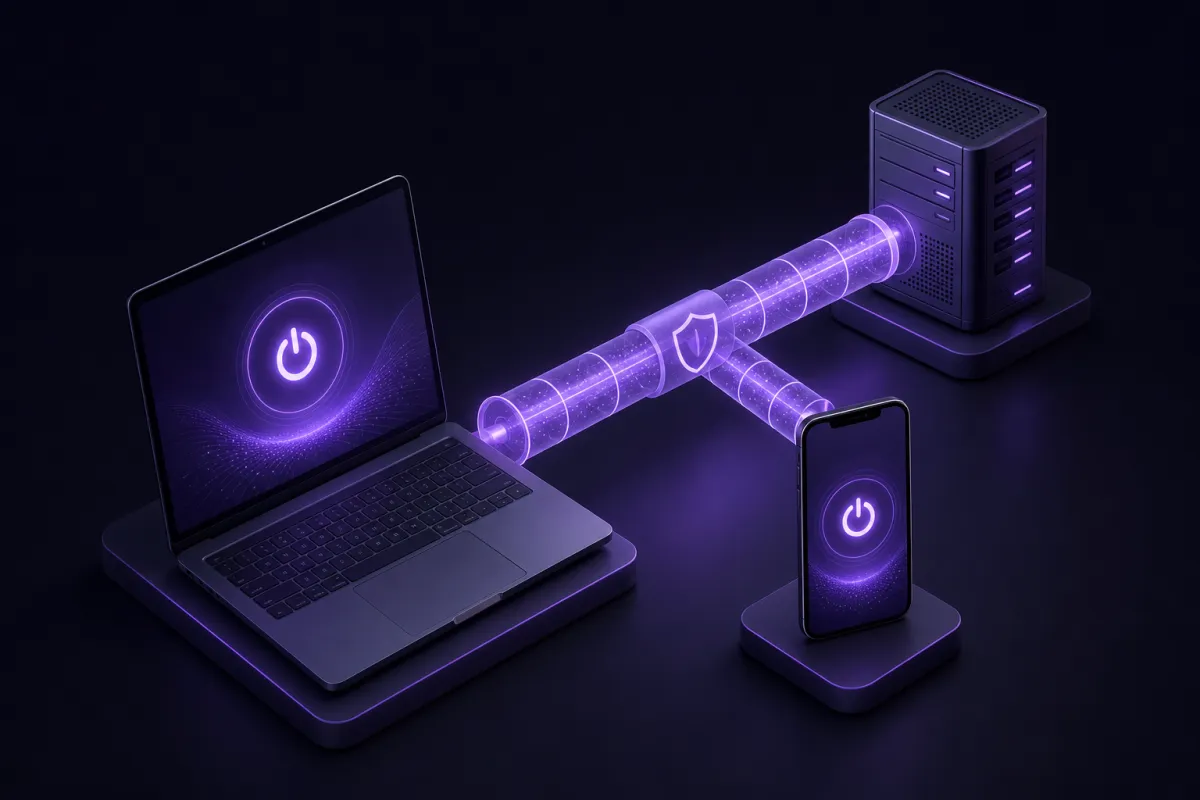
To use a VPN, choose a trusted service, install its app on your device, sign in, pick a server location, and tap or click Connect. Once connected, your internet traffic is routed through the VPN server, which changes the IP address websites see and helps protect your connection on networks you do not fully trust.
This guide walks through the full process, from choosing a plan to checking that the VPN works. It also explains how to use a VPN on a phone, computer, browser, and TV, plus the optional settings that are worth turning on when they fit your needs.
What a VPN does before you set it up
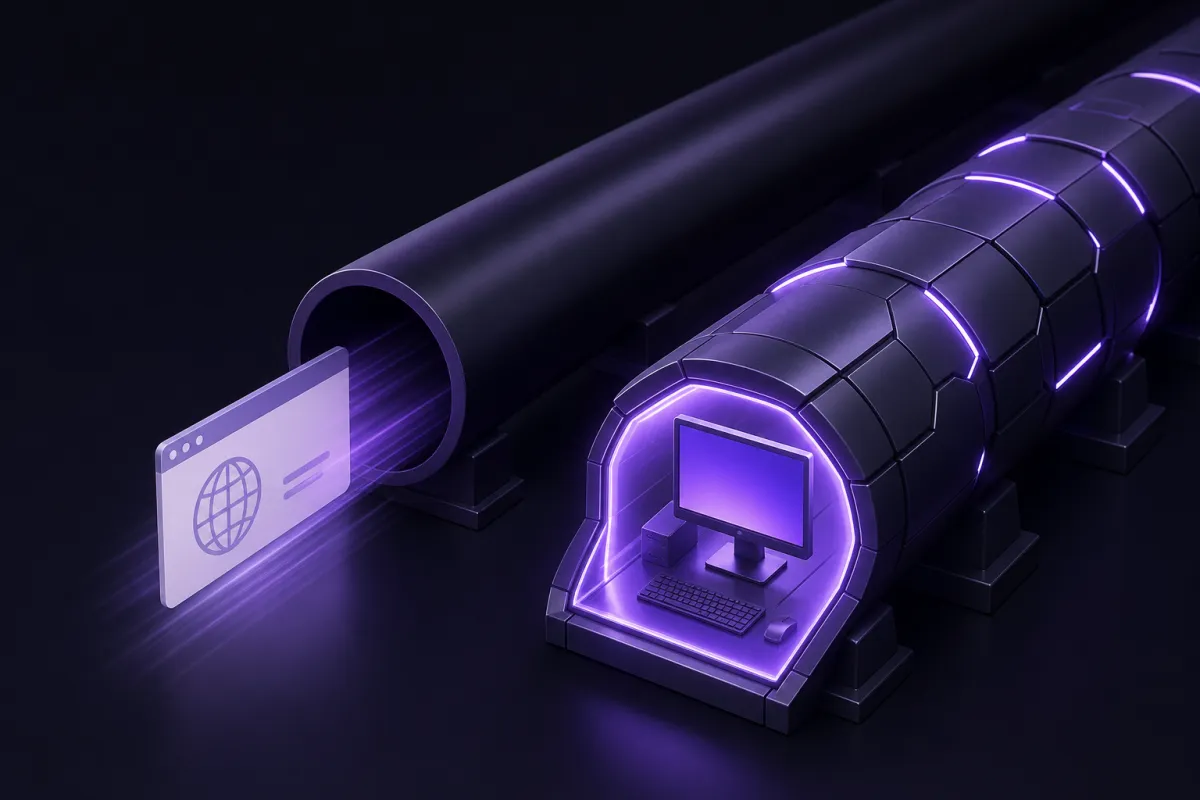
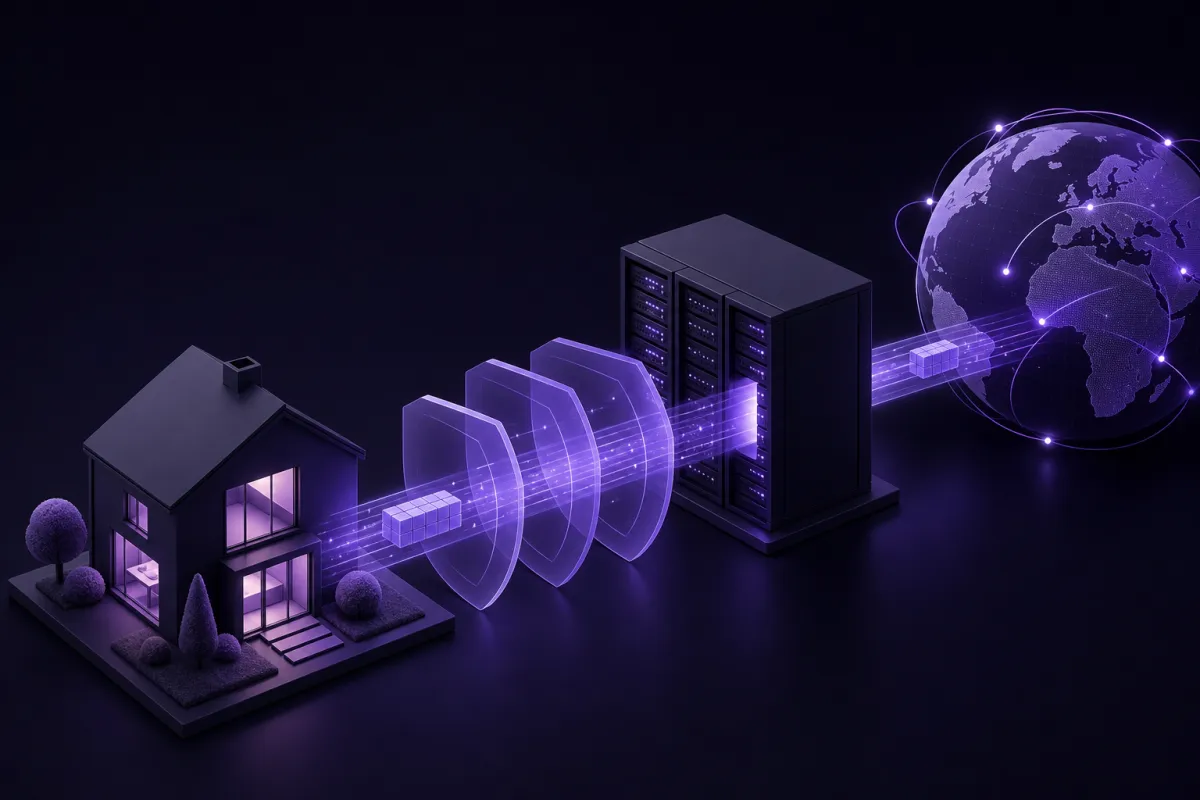
A VPN creates an encrypted tunnel between your device and a VPN server. Websites and apps see the server IP address rather than your home, mobile, hotel, or cafe network IP address. Your internet provider or local network can see that you are connected to a VPN, but not the individual pages you open inside the tunnel.
That makes a VPN useful for everyday privacy, public WiFi, travel, and reducing how much your network operator can see. If you want a deeper primer before setting one up, read what is a VPN.
It is also important to know the limits. A VPN does not make you anonymous. It does not stop malware or phishing by itself. It also does not stop tracking by websites where you are logged in, such as your email, shopping, or social accounts. Think of it as one privacy tool, not a complete security system.
How to set up a VPN for the first time
The setup process is usually quick, but a good first setup matters. Use the official app for your device, sign in carefully, and avoid changing advanced settings before you have tested the basics.
- Pick a plan. Choose a VPN plan that covers your devices and payment preference. Crispy VPN costs $5.99 per month or $35.88 per year, which works out to $2.99 per month, with a 30-day money-back guarantee on every plan. One subscription covers up to 10 devices, and you can pay by card or PayPal. You can compare options on the pricing page.
- Download the correct app. Install the VPN from the provider’s official download page or the relevant app store. Crispy VPN apps are available from the download page for iPhone and iPad, Mac, Windows, Linux, Android, Apple TV, Android TV and Google TV, plus Amazon Fire TV devices running Fire OS. Browser extensions are available for Chrome, Edge, and Firefox.
- Create or sign in to your account. Crispy VPN accounts use email and password. Use a password manager if you have one, especially if you will sign in on several devices.
- Allow VPN permissions. Phones and computers may ask for permission to add a VPN configuration. This is normal. Without it, the app cannot create the VPN tunnel.
- Connect to a nearby location first. A nearby VPN server is usually the simplest starting point for speed and reliability. Once the connection works, you can switch location when you need to.
Crispy VPN uses WireGuard on every server. WireGuard is a modern VPN protocol with a small code base, strong performance, and good battery behavior on mobile devices. For more background, see what is WireGuard.
How to turn on VPN and check that it works
Once the app is installed, the daily routine is simple. Open the app, choose a location if needed, then press Connect. The app should show a connected state after a few seconds.
How to connect to VPN in a normal browsing session
- Open the VPN app or browser extension.
- Sign in if you are not already signed in.
- Select a server location, or keep the default location if the app suggests one.
- Press Connect.
- Wait for the app to show that the VPN is connected.
- Open your browser or app and use the internet as usual.
To check that it works, look up your visible IP address before and after connecting. The address and approximate location should change after the VPN connects. If you want a more detailed checklist, use our guide to checking whether your VPN is working.
If your internet stops after connecting, do not keep toggling random settings. Disconnect, try a nearby location, and check whether your normal internet works without the VPN. If the base connection is broken, the VPN app cannot fix it.
How to change VPN location without causing problems
Changing location means routing your traffic through a different VPN server. People do this for privacy preferences, travel, testing how a site appears in another region, or getting a better route when a particular server feels slow.
How to change VPN location step by step
- Save any work in web apps before switching.
- Open the VPN app.
- Disconnect if the app requires it, or open the location list if switching while connected is supported.
- Choose the city or country you want.
- Connect again and wait for the connected state.
- Refresh the website or restart the app you were using if it still shows the old location.
For best performance, choose a location close to you unless you specifically need another region. A longer physical route can increase latency, which may matter for calls, gaming, and remote desktop sessions.
Crispy VPN has 12 server locations across Europe, North America, and Asia Pacific, including cities such as London, Frankfurt, New Jersey, Tokyo, Seoul, and Sydney. You do not need to memorize the list. Start close, then switch only when there is a reason.
Using a VPN on phone, computer, browser extension and TV
The basic idea is the same on every device, but the controls are slightly different. Here is the practical version for the devices most people use every day.
Phone and tablet
On iPhone, iPad, or Android, install the app, sign in, allow the VPN configuration, and tap Connect. Phones may show a small VPN label or icon in the status area while the tunnel is active.
On mobile, a VPN is especially useful on hotel, airport, school, and cafe WiFi. It can also help keep your browsing more private from your mobile carrier. Remember that apps where you are logged in can still identify your account activity.
Split tunneling differs by platform. Crispy VPN supports split tunneling on Android by app, and on iPhone and iPad by website, up to 20 websites. That means you can send some traffic through the VPN while leaving other traffic outside it.
Computer
On Windows, Mac, or Linux, download the desktop app, sign in, and connect from the main app window. Desktop VPN apps are useful when working on public WiFi, using remote tools, or keeping browser and app traffic inside the VPN tunnel.
On laptops, check that the VPN reconnects after sleep or after switching from WiFi to a mobile hotspot. If you rely on the VPN for sensitive browsing, consider turning on the kill switch where it is available.
Browser extension
A browser extension protects browser traffic rather than every app on the device. This can be convenient if you want VPN protection for Chrome, Edge, or Firefox while leaving other apps on your normal connection. For a fuller comparison, see our guide to the VPN browser extension.
Crispy VPN browser extensions support website based split tunneling and include an opt-in kill switch. They also support double-hop for web traffic when you want to route through two VPN servers.
TV
On a TV, install the app from the device’s app store, open it, and sign in. With Crispy VPN on TV, sign-in is handled by scanning a QR code with your phone, which is much easier than typing a long password using a remote.
Apps are available for Apple TV, Android TV and Google TV, and Amazon Fire TV devices running Fire OS. Amazon’s newer Vega OS devices are different, and Crispy VPN is not available on the Fire TV Stick 4K Select or Fire TV Stick HD (2nd gen) running Vega OS.
Optional VPN features to turn on when they fit
After your basic connection works, look at optional features. Do not enable everything at once. Turn on one feature, test your usual sites and apps, then keep it if it helps.
Kill switch
A kill switch blocks traffic if the VPN connection drops, so your device does not quietly fall back to the regular internet connection. This is useful on public WiFi, when traveling, or whenever you do not want apps sending traffic outside the VPN by accident.
In Crispy VPN, the kill switch is opt-in and off by default. It is available on iPhone and iPad, Mac, Windows, Linux, and browser extensions. Windows also has an optional Lockdown mode. Android and Fire TV use the system Always-on VPN settings for this kind of behavior. Apple TV and Android TV apps do not have a kill switch. Learn more in our guide to what is a VPN kill switch.
Split tunneling
Split tunneling lets you decide which traffic uses the VPN and which traffic uses your normal connection. It can be useful for banking sites, local devices, work tools, or services that behave poorly when your location changes.
Crispy VPN supports split tunneling on Android by app, on iPhone and iPad by website, and in browser extensions by website. It is not available on Mac, Windows, Linux, or TV. If you want the details, read what is split tunneling.
Double-hop
Double-hop routes supported web traffic through two VPN servers instead of one. It is off by default because it adds distance and can affect speed, but it can be useful when you want extra separation between entry and exit points.
With Crispy VPN, double-hop is available on iPhone and iPad, Mac, Windows, Linux, and browser extensions, and it covers web traffic.
Common mistakes when learning how to use a VPN
Most VPN problems come from small setup choices, not from anything mysterious. These are the mistakes to avoid.
- Installing the wrong app. Use the official download page or official app store listing. Avoid lookalike apps and random files from search results.
- Forgetting to connect. Installing a VPN app is not the same as turning it on. Check the connected state before you start browsing.
- Choosing a faraway location for no reason. Distance can affect speed and latency. Start nearby unless you need a specific country or city.
- Assuming every device is protected. A VPN protects the device or browser where it is connected. If you install it on your phone, that does not automatically protect your laptop or TV.
- Expecting a VPN to stop all tracking. Websites can still recognize your account when you sign in. Cookies, device settings, and account activity can still matter.
- Turning on advanced settings without testing. A kill switch, split tunneling, and double-hop can be useful, but each changes how traffic moves. Enable them one at a time.
- Ignoring captive portals. Hotel and airport WiFi often requires you to accept terms in a browser before the VPN can connect. Join the WiFi, complete the portal, then turn on the VPN.
If a site stops working after you connect, first try a different VPN location. If that does not help, test with split tunneling where available, or disconnect briefly to confirm whether the site itself is having a problem.