crispy
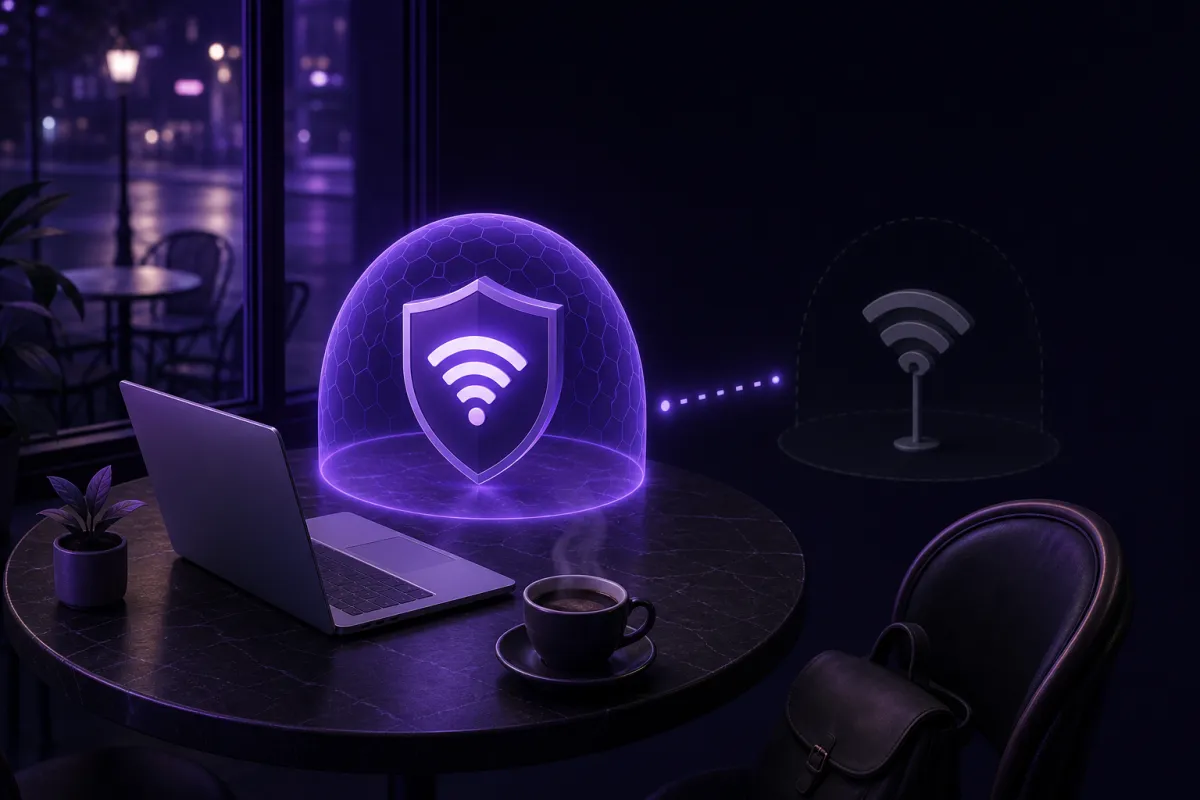
A VPN for public Wi-Fi is worth using because it encrypts your device's traffic between you and the VPN server, which limits what café, hotel, airport and train networks can see or tamper with. HTTPS already protects much of the web, but public Wi-Fi still has real risks: fake hotspots, DNS hijacking, captive portals and network-owner snooping.
The practical answer is simple: join the Wi-Fi, complete the sign-in page if there is one, then turn on your VPN before you browse, message, work or open apps. A VPN is not a magic privacy shield, but on shared networks it is one of the easiest ways to reduce exposure.
Is public wifi safe when most sites use HTTPS?
Public Wi-Fi is safer than it was in the old days of plain HTTP websites, but it is not automatically safe. Most major websites and apps now use HTTPS, which protects the contents of a web page or app session from casual viewing on the local network. That means someone in the same café usually cannot read your bank password just because you are connected to the same hotspot.
That improvement can create a false sense of security. HTTPS protects the connection to a specific site, not the whole experience of using an unfamiliar network. The Wi-Fi operator can still see that your device connected, when it connected, how much data it used and, in many cases, which domains your device looks up. Other parties may also try to imitate a legitimate hotspot, interfere with DNS, or push you toward a captive portal that asks for more information than it needs.
So the honest answer to is public wifi safe is: safe enough for low-risk tasks if your device is updated and the sites you use are encrypted, but not a network you should blindly trust. A VPN adds a protective tunnel that makes the local network less important. If you want the basics first, read what a VPN is and then come back to the public Wi-Fi specifics.
Public wifi security risks that still matter
The most realistic public Wi-Fi risks are not movie-style hackers instantly taking over every device in the room. They are more ordinary, and that is why they matter.
Fake hotspots with familiar names
A fake hotspot can use a name that looks convincing, such as a café name, a hotel brand, or a generic airport Wi-Fi label. If your device joins it, all your traffic passes through equipment controlled by whoever set it up. HTTPS still protects the contents of properly encrypted sessions, but the operator can observe connection patterns, attempt DNS tricks, and present misleading sign-in pages.
DNS hijacking and lookups
DNS is the system that turns website names into server addresses. On an untrusted network, DNS requests can reveal which services you are trying to reach. A hostile or poorly managed network can also try to send you to the wrong place. Modern browsers have protections, and HTTPS helps, but DNS remains a common weak point. For a deeper explanation, see our guide to DNS leaks.
Snooping by the network owner
The network owner may not be malicious. It may be a café, coworking space, hotel, airport, train operator, or conference venue. Still, the network can collect connection metadata, apply filters, inject its own landing pages, or use analytics on captive portals. On a work trip, that can reveal more about your routine than you intended.
Captive portals and overbroad requests
Captive portals are the web pages that ask you to accept terms, enter a room number, type an email address, or click a button before the internet works. Some are harmless. Others are clumsy, overloaded with trackers, or easy to imitate. The portal also creates a practical VPN problem: you usually need to complete it before the VPN can connect.
What a VPN for public Wi-Fi actually fixes
A VPN creates an encrypted tunnel from your device to a VPN server. Once it is connected, the local Wi-Fi network no longer sees the individual websites and services your device contacts in the same direct way. It mainly sees that your device is talking to the VPN.
That helps with several public Wi-Fi problems. It reduces local network snooping, limits DNS exposure if the VPN handles DNS correctly, and makes it harder for the hotspot operator to profile your browsing from raw network traffic. It also protects apps, not just websites, when you use a full VPN app on your device.
Crispy VPN uses WireGuard on every server. WireGuard is a modern VPN protocol with a small code base, strong performance and good battery behavior, which matters when you are on a phone or laptop in an airport lounge or train carriage. If you want the protocol details, read what WireGuard is.
A VPN does not make you anonymous. It does not stop phishing pages, malware, weak passwords, or tracking by services where you are logged in. If you sign in to a shopping site, that site still knows it is you. If you approve a malicious download, a VPN will not make that file safe. Think of it as protection for the network path, not a replacement for judgment, updates and account security.
The right connection order: Wi-Fi, portal, then VPN
The most common public Wi-Fi mistake is turning on the VPN before the hotspot has finished letting you onto the network. Many captive portals need a normal local connection for a few seconds so they can show the sign-in or terms page. If the VPN is already trying to tunnel everything, the portal may fail to load.
Use this order when joining a new café, hotel, airport or train network:
- Confirm the network name. Ask staff, check signage, or use the official information screen. Avoid lookalike names.
- Join the Wi-Fi. Do not open sensitive apps yet.
- Complete the captive portal. Accept the terms or enter the required access code. Give the minimum information needed.
- Turn on your VPN. Wait for the VPN app to show that it is connected.
- Check the connection if it matters. If you are about to work, bank, or send private files, verify that your IP address has changed with a trusted check such as what is my IP.
- Start browsing and using apps. Keep the VPN connected until you leave the network.
If the Wi-Fi drops and reconnects, repeat the same logic. First regain network access, then make sure the VPN is connected again before doing anything sensitive.
Public wifi security checklist before you travel
Good public wifi security is mostly about habits. Set them up before you are tired, late for a train, or balancing a laptop in a crowded terminal.
- Install your VPN before the trip. Do not wait until you are on a slow hotel network. Crispy VPN apps are available from the download page for iPhone and iPad, Mac, Windows, Linux, Android, Apple TV, Android TV and Google TV, with browser extensions for Chrome, Edge and Firefox.
- Use auto-connect habits carefully. If your VPN app supports quick reconnects, use them, but remember captive portals may need to load first. After the portal, connect the VPN.
- Turn on the kill switch where available. A kill switch helps block traffic if the VPN disconnects. In Crispy VPN it is opt-in and available on iPhone and iPad, Mac, Windows, Linux and browser extensions. Windows also has an optional Lockdown mode. On Android, use the system Always-on VPN and Block connections without VPN settings.
- Forget networks after using them. Remove hotel, café, train and airport networks from your saved list so your device does not automatically join a lookalike later.
- Keep your system and browser updated. Public networks are not the place to run old browser builds, outdated Wi-Fi drivers, or unpatched operating systems.
- Prefer HTTPS and official apps. Do not ignore browser warnings. If a site certificate warning appears, stop rather than clicking through.
- Limit sensitive work on shared machines. A VPN protects your connection, not a public computer, borrowed tablet, or compromised device.
If you rely on public Wi-Fi often, learn how a kill switch behaves before you need it. Our guide to VPN kill switches explains the tradeoffs in plain language.
Hotel wifi VPN tips, airport wifi safety and train networks
The same VPN principles apply across public networks, but the setting changes the risk and the convenience.
Hotel wifi VPN habits
Hotel Wi-Fi is convenient because you can use it for hours, but that also means more exposure. You may connect a phone, laptop, tablet and TV device over several days. Use a VPN on phones and computers before opening work tools, cloud storage, banking or private messaging. If the hotel uses a room-number login, make sure you are on the real network before entering anything.
For TV streaming in a hotel room, remember that TV platforms work differently from phones and laptops. Crispy VPN supports Apple TV, Android TV and Google TV, and TV sign-in uses a QR code scanned with your phone. Apple TV and Android TV apps do not have a kill switch, so use them for ordinary viewing rather than sensitive account management.
Airport wifi safety
Airport networks are busy, temporary and full of distracted people. That makes them attractive places for fake hotspot names and careless clicks. For better airport wifi safety, verify the official network name, avoid entering unnecessary personal details into portals, and connect your VPN before opening email, work chat or banking apps.
Train and café networks
Train Wi-Fi often drops as the connection moves between coverage areas. Café Wi-Fi may be run on basic consumer gear with a password printed on a receipt. In both cases, assume the network is untrusted. Do your portal step, start the VPN, and do not panic if performance varies. A weak shared connection can still be slow even when the VPN is working correctly.
Choosing and using a VPN on shared Wi-Fi
For public Wi-Fi, the best VPN is one you will actually turn on. Look for broad device support, a modern protocol, clear privacy practices and simple reconnect behavior. If you use several devices on the road, one account should cover them without complicated setup.
Crispy VPN covers up to 10 devices on one subscription and works across major phone, desktop, TV and browser platforms. It keeps no activity logs, and its two-party relay design separates who you are from what you do. That design is relevant on public Wi-Fi because the local network should not be the party learning your browsing patterns.
Do not judge a public Wi-Fi VPN only by speed claims. Speed matters, but reliability, leak protection and a clear kill switch are just as important when your connection drops between a gate, taxi stand and hotel lobby. If a VPN slows down a poor hotspot, try a nearby server location, but remember that the underlying Wi-Fi may be the real bottleneck.
Also be realistic about browser extensions. A VPN browser extension can be useful for web traffic in that browser, especially on a locked-down laptop where you do not want to route everything. A full VPN app is the better choice when you want protection for other apps too, such as email clients, messaging tools and cloud sync.
The safest routine is not complicated. Treat every shared hotspot as untrusted, complete the portal first, connect the VPN, and keep your device updated. That will not solve every online risk, but it removes a large amount of avoidable exposure from public networks.