crispy
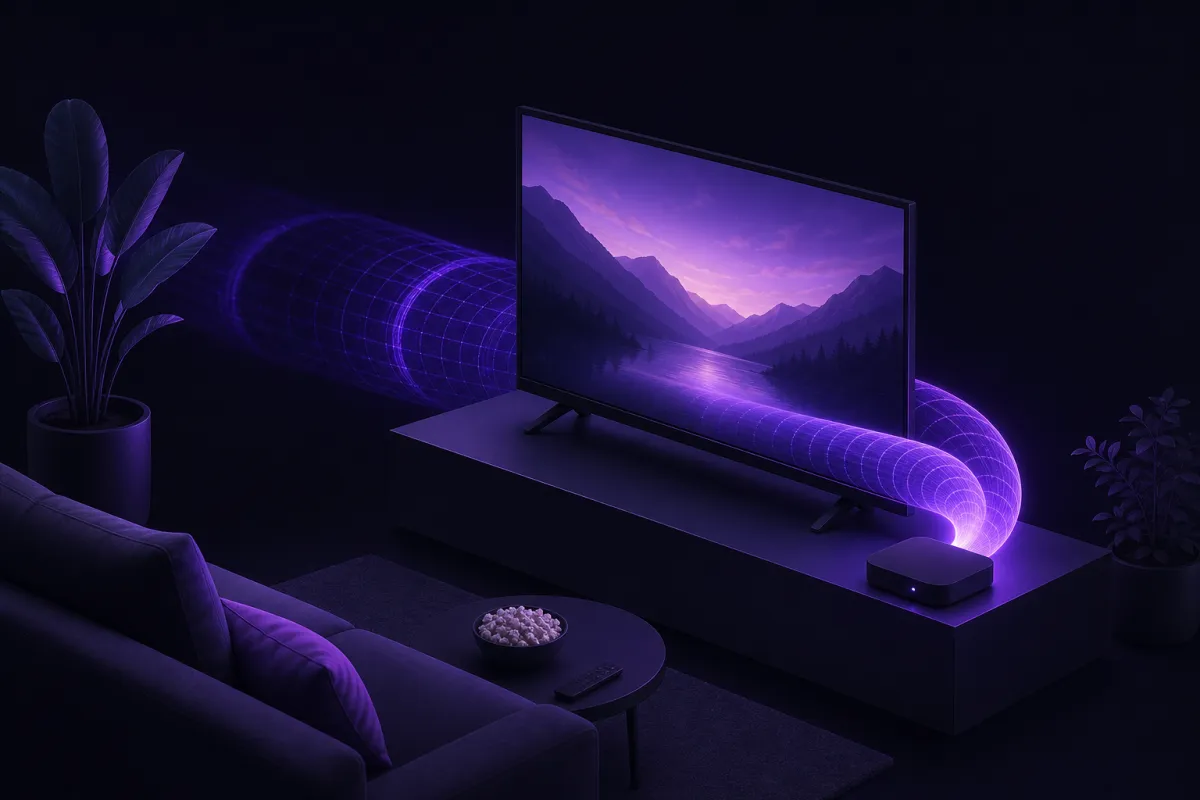
The best VPN for TV is one with a real app for your streaming device, a fast modern protocol, a clear privacy policy, honest pricing, and a refund window. For most buyers, that means checking Apple TV, Android TV, Google TV and Fire TV support before comparing anything else.
This guide explains what matters, what should make you cautious, and how Crispy VPN fits the criteria. It also covers the awkward parts: Samsung and LG smart TVs generally cannot run VPN apps directly, and newer Fire TV devices on Vega OS are not the same as Fire OS devices.
What the best VPN for smart TV actually needs to do
A TV VPN has a different job from a laptop VPN. You are not tweaking settings all day or switching profiles between meetings. You want a living room app that stays out of the way, connects reliably, and is easy to sign into with a remote.
The first question is not speed, price, or server count. It is whether your TV platform can run a VPN app at all. Apple TV, Android TV, Google TV and Fire TV devices can support VPN apps when the provider builds for them. Samsung and LG smart TVs, however, cannot run normal VPN apps directly. If you own one of those TVs, the practical route is usually to use a compatible streaming box or stick connected by HDMI.
That distinction matters because many people search for the best VPN for smart TV and assume every smart TV works the same way. It does not. A VPN app on an Apple TV or Android TV device is straightforward. A VPN on a TV operating system that does not allow VPN apps is a different problem, and you should not subscribe until you know your device is supported.
If you want a broader overview of TV platform differences, our VPN for smart TV guide goes deeper into what works on each type of device.
The best VPN for Android TV, Google TV and Fire TV starts with app support
The best VPN for Android TV is not simply the fastest VPN on a phone benchmark. It is the one that has a proper TV app, works cleanly with a remote, and does not force you through a painful password entry screen.
Android TV and Google TV are closely related from a VPN buyer's point of view. A good provider should make installation simple, support your account across devices, and avoid asking you to manually configure files on the TV. QR sign-in is especially helpful, because typing a strong password with a directional pad is slow and error prone.
Fire TV is supported only when it runs Fire OS
Fire TV is more complicated than it used to be. Fire TV devices running Fire OS can install compatible VPN apps from the Amazon Appstore. That is the Fire TV support most buyers are looking for.
Amazon's newer Vega OS is different. The Fire TV Stick 4K Select and Fire TV Stick HD (2nd gen) use Vega OS, not Fire OS, and VPN app support is not the same. If a provider says it supports Fire TV, check whether that means Fire OS specifically. Do not assume every device with Fire TV branding can run the same VPN app.
For any TV platform, look for a downloads page that names the device family clearly. A vague claim such as “works on all TVs” is not enough.
The best VPN for Apple TV should feel like a native TV app
The best VPN for Apple TV should be built for Apple TV, not treated as an afterthought. You should be able to install it from the TV, open it with the remote, sign in without frustration, pick a location, and connect.
QR sign-in is a useful detail here. Instead of typing an email and password on the TV, you scan a code with your phone and complete sign-in there. It sounds small until you have tried entering account credentials from the sofa.
Also check what features are available on the TV app specifically. Some VPN features that are common on desktop, such as split tunneling or advanced kill switch controls, may not exist on TV operating systems. That does not make a TV app bad. It means you should judge it by the right criteria: stable connections, clear location choice, simple sign-in, and an interface you can operate comfortably with a remote.
If you also use iPhone or iPad, it helps when the same account covers your phone, tablet and Apple TV. A TV VPN rarely lives alone. Most households want one subscription for the devices they already use.
Privacy, protocol, locations and price: the criteria that matter
Once device support is clear, the next step is to compare the fundamentals. A VPN for TV still needs the same privacy and engineering basics as a VPN for a laptop or phone.
Protocol
Look for a modern, efficient VPN protocol. WireGuard is a strong choice because it has a small code base, is designed for speed, and is battery friendly on mobile devices. If you want a plain English technical overview, read our guide to what WireGuard is.
Logging design
A VPN should be clear about what it does and does not log. For TV use, the key question is still whether the provider keeps activity logs that link your account to what you do online. Avoid vague privacy pages that make large promises but do not explain how the service is designed.
Kill switch and leak protection
A kill switch blocks traffic if the VPN connection drops. It is more common and more configurable on desktop and mobile than on TV. On a TV, the practical question is whether the operating system or app provides a way to avoid accidental traffic outside the VPN. Learn the concept in our guide to VPN kill switches.
Server locations near you
Choose a provider with locations that make sense for your household. A nearby server often gives better everyday performance than a distant one. Huge location lists are not automatically better if the places you need are missing.
Price, renewal and refund policy
Do not judge a VPN only by the first month price. Check the renewal cost, the yearly price, what payment methods are available, how many devices are included, and whether there is a clear refund policy. Our guide to VPN cost explains the tradeoffs in more detail.
Support
TV apps are simple when they work and frustrating when they do not. Good support pages should explain installation, sign-in, supported platforms, and common connection checks without requiring guesswork.
Red flags when choosing a VPN for TV
A TV VPN buyer's guide should also tell you what to avoid. Some warning signs are obvious, but others are easy to miss when a landing page is crowded with claims.
- No clear TV app list: If the provider does not name Apple TV, Android TV, Google TV or Fire TV clearly, assume you need to verify before paying.
- “All smart TVs” claims: Samsung and LG TVs cannot install standard VPN apps directly. Any provider suggesting otherwise should explain exactly how it works.
- Confusing Fire TV support: Fire OS and Vega OS are not the same. Check the exact Fire TV model and operating system.
- Vague logging language: Phrases like “total privacy” are less useful than a specific statement about activity logs and service design.
- Unrealistic promises: A VPN does not make you anonymous, stop malware or phishing on its own, or stop tracking by sites and services you are logged into.
- No refund policy: TV compatibility can depend on your exact model, store region, network and account. A refund window gives you time to verify the basics.
- Hidden renewal pricing: If the long term cost is hard to find, slow down before subscribing.
You should also be careful with any provider that pushes manual workarounds as the normal setup path for TV. A native app is not the only possible technical approach, but it is the cleanest experience for most households.
A short checklist for picking the best VPN for TV
Use this checklist before you pay. It is intentionally practical, because the wrong TV platform choice is the easiest mistake to make.
- Identify the exact device: Apple TV, Android TV, Google TV, Fire TV running Fire OS, Samsung TV, LG TV, or something else.
- Confirm there is a real app: Look for a named TV app on the provider's download page or app store listing.
- Check sign-in: QR sign-in is preferable on TV because it avoids typing long passwords with a remote.
- Review the protocol: Prefer a modern protocol such as WireGuard for everyday speed and efficiency.
- Read the logging policy: Look for a clear no activity logs statement and an explanation of how the service is designed.
- Check safety controls: Understand whether a kill switch is available on your device, handled by the system, or not available on that TV platform.
- Pick locations that matter to you: Nearby servers are often more useful than a long marketing list.
- Compare the real price: Check monthly price, yearly price, device limit, payment methods and renewal terms.
- Require a refund window: Test the app on your exact TV device while you can still change your mind.
- Test after setup: Connect, open your usual apps, and check that your public IP has changed. Our VPN testing guide shows what to look for.
Our pick: Crispy VPN
We make Crispy VPN, so this is not pretending to be a neutral awards list. It is our pick because it fits the criteria above in specific, verifiable ways, especially for households that want simple TV apps plus strong privacy design across their other devices.
TV app support
Crispy VPN has apps for Apple TV, Android TV and Google TV, and Amazon Fire TV devices running Fire OS from the Amazon Appstore. On TV, you sign in by scanning a QR code with your phone, which is much easier than typing credentials with a remote.
It is not the right choice if you need a VPN app directly on a Samsung or LG TV, because those TVs do not run standard VPN apps. It is also not the right choice for Vega OS Fire TV devices, including Fire TV Stick 4K Select and Fire TV Stick HD (2nd gen).
Protocol and privacy design
Every server uses WireGuard. The service keeps no activity logs, and its two-party relay design separates who you are from what you do. That is a concrete privacy architecture, not just a slogan.
Locations and device coverage
The network has 12 server locations, including options in Europe, the United States and Asia Pacific. If you need servers in many specific countries, this may not be the best fit. If the available locations match your needs, the smaller list is straightforward to understand.
One subscription covers up to 10 devices, and the same account works across iPhone, iPad, Mac, Windows, Linux, Android, Apple TV, Android TV, Google TV, Fire TV and browser extensions for Chrome, Edge and Firefox. You can get the apps from the download page.
Kill switch and split tunneling expectations
On TV, expectations should be precise. The Apple TV and Android TV apps do not have a kill switch. Android and Fire TV rely on the system Always-on VPN settings. Split tunneling is not available on TV.
On other platforms, kill switch support is available on iPhone and iPad, Mac, Windows, Linux and the browser extensions, and it is opt-in. Windows also has an optional Lockdown mode. Split tunneling is available on Android per app, on iPhone and iPad by website up to 20, and in the browser extensions by website.
Price and refund policy
Crispy VPN is a paid service with no free plan. It costs $5.99 per month, or $35.88 per year, which works out to $2.99 per month on the yearly plan. Every plan includes a 30-day money-back guarantee, covers up to 10 devices, and can be paid by card or PayPal.
When it is not the right choice
Do not choose it if you need router setup, WireGuard configuration files, a VPN app for Vega OS, or servers in a long list of countries outside the 12 available locations. Also do not choose it if you require an obfuscation mode in the apps, since the apps use standard WireGuard.
How to set up and test a TV VPN without guesswork
After you choose a provider, keep setup simple. Install the app on the TV device itself when possible, sign in with QR code if offered, choose a nearby location, and connect. Then use your normal TV apps for a few minutes instead of judging the setup from the connection screen alone.
Testing should be basic and repeatable. Check that the VPN says it is connected. Confirm that your public IP address has changed on another device if the provider offers a simple check page. Try a nearby server first, because that is usually the fairest test for speed and stability.
If video quality drops, do not assume the VPN is unusable. Try a closer location, restart the app, and check whether your home connection is already under load. A VPN can add overhead, and distance matters. For more context, read our guide on whether a VPN slows down internet.
Finally, remember the limits. A VPN protects traffic between your device and the VPN service, changes the IP address visible to sites and apps, and can improve privacy on networks you do not fully trust. It does not make streaming accounts untrackable, remove the need for secure passwords, or give permission to ignore service terms or local rules.