crispy

Incognito mode keeps your browsing session off your local browser history, but it does not hide your IP address or make your traffic invisible to your internet provider, school, workplace or the websites you visit. A VPN adds network privacy by encrypting your connection to a VPN server and showing websites the VPN server’s IP address instead of your own.
The short version: incognito is useful when you do not want a browser to remember a session on that device. A VPN is useful when you want more privacy on the network itself. They solve different problems, and using both can make sense.
Incognito mode vs VPN: the quick comparison
Incognito mode, also called private browsing, is a browser feature. A VPN is a network privacy tool. The confusion starts because both use privacy language, but they operate in different places.
Incognito affects what your browser saves locally. It usually prevents the browser from saving your browsing history, search history, cookies and site data from that private window after you close it. Downloads and bookmarks may still remain, because you chose to save them outside the temporary session.
A VPN affects how your internet connection travels. It creates an encrypted connection between your device and a VPN server. Your internet provider, coffee shop Wi-Fi, school or workplace network can see that you connected to a VPN, but not the individual websites you visit through that VPN connection. Websites see the VPN server’s IP address rather than your home or mobile IP address.
Here is the practical split:
- Use incognito when you want a browser session that does not stay in local history or keep cookies after closing.
- Use a VPN when you want to reduce what the network can see and hide your real IP address from websites.
- Use both when you want less local browser residue and more network privacy at the same time.
If you want a deeper primer on VPN basics, read what is a VPN.
Is incognito mode private?
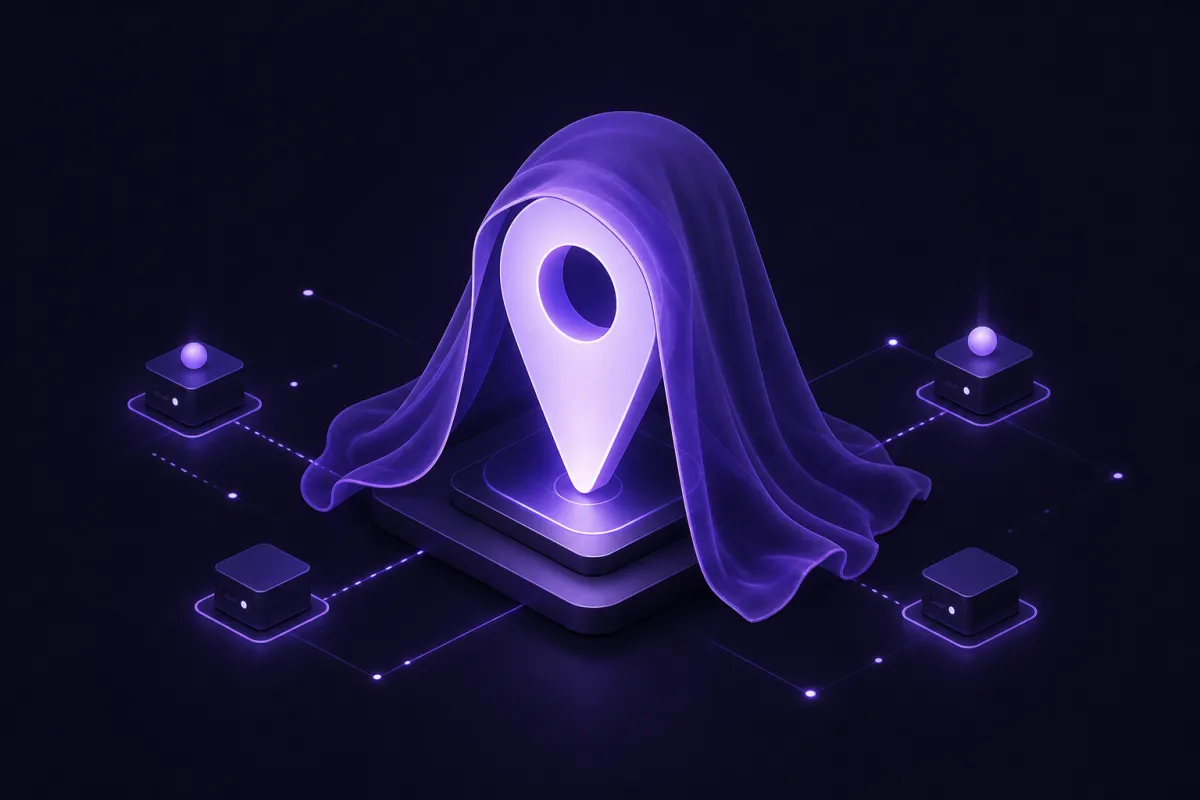
Incognito mode is private in a limited, local sense. It is mainly about the browser on the device in front of you. When you close the incognito window, the browser usually deletes cookies and site data created during that session and does not add those pages to normal browsing history.
That can be useful in everyday situations. You might be shopping for a gift on a shared family computer, checking a second email account without signing out of the first one, or testing how a website appears when you are not logged in. Incognito gives you a temporary, cleaner browser session.
But incognito is not a privacy shield for the whole internet connection. It does not encrypt traffic beyond the normal HTTPS protection provided by many websites. It does not stop your internet provider from seeing the domains you connect to. It does not stop a school or employer network from seeing network activity on equipment they control. It also does not stop websites from recognizing you if you log in.
What incognito usually does
- Stops pages from being added to the browser’s normal history.
- Clears cookies and site data from that private session when you close the window.
- Lets you browse without using your normal logged-in cookies, unless you sign in again.
- Keeps the session separate from your regular browser window.
What incognito does not do
- It does not hide your IP address from websites.
- It does not hide your activity from your internet provider or network administrator.
- It does not make you anonymous online.
- It does not block malware, phishing or scam sites on its own.
- It does not stop tracking by services you sign into during the session.
So, is incognito mode private? Yes, for local browser cleanup. No, if you mean private from the network, websites or accounts you use.
Does incognito hide IP address information?
No. Incognito does not hide IP address information from websites, apps or online services. If you visit a site in a normal window and then visit it again in incognito, the site can still see the same public IP address unless you are also using a VPN or another network privacy tool.
Your IP address is part of how internet traffic gets routed. It can reveal approximate location, such as a city or region, and it can be associated with your internet provider or mobile carrier. It is not the same as your name, but it is still a useful identifier for websites, advertisers and network systems.
Incognito can remove cookies after the session, which may reduce one kind of browser-based recognition. But an IP address is not stored only as a cookie. It is visible at the network level when your device connects to a website.
If you want to check what IP address a website sees, you can use what is my IP before and after connecting to a VPN. The address should change when the VPN is active.
This is one of the biggest differences in the incognito mode vs VPN comparison. Incognito changes local browser behavior. A VPN changes the visible network path.
Private browsing vs VPN: what a VPN adds
Private browsing and a VPN are not interchangeable. Private browsing limits what is saved in the browser. A VPN protects more of the connection between your device and the VPN server.
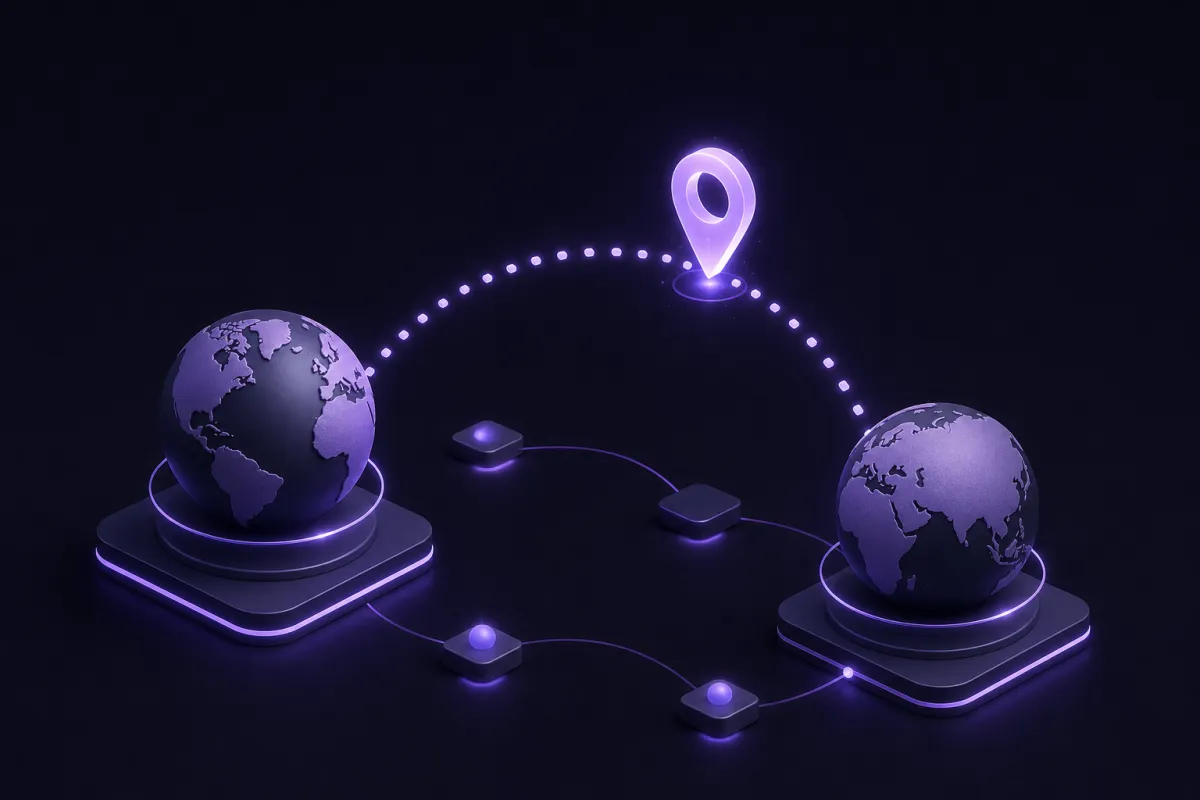
When you connect to a VPN, your device sends traffic through an encrypted tunnel to a VPN server. Your internet provider or local network can see that data is moving to the VPN, but they should not see the individual websites you access through that tunnel. The websites you visit see the VPN server’s IP address.
Crispy VPN uses WireGuard on every server. WireGuard is a modern VPN protocol with a small code base, strong performance and good battery efficiency on mobile devices. The practical benefit is simple: you can keep a VPN on for everyday browsing without turning the experience into a technical project.
A VPN helps most when the network is not fully trusted. Public Wi-Fi in hotels, airports and cafes is the obvious example, but home broadband, mobile networks and shared workspaces all involve networks run by someone else. A VPN gives you a clearer boundary between your device and that network.
There are limits. A VPN does not make you anonymous. If you log in to a social network, email account, streaming account or shopping site, that service can still know it is you. A VPN also does not stop malware or phishing by itself, so you still need cautious browsing habits and up-to-date software.
Crispy VPN keeps no activity logs and uses a two-party relay design that separates who you are from what you do. One subscription covers up to 10 devices, so the same account can protect a laptop, phone and tablet without changing how incognito works inside each browser.
When to use incognito, a VPN or both
The right choice depends on what you are trying to keep private. The tool should match the risk.
Use incognito when the device is the concern
Incognito is useful on a shared or borrowed device, or when you want a temporary browser session that will not keep cookies after closing. It is also handy for signing into a second account, checking prices without your existing cookies, or reading a page without adding it to your local history.
Use a VPN when the network is the concern
Use a VPN when you do not want the local network or internet provider to see the sites you visit. It is especially relevant on public Wi-Fi or any network where you do not control the router. Crispy VPN apps are available for iPhone, iPad, Mac, Windows, Linux, Android, Apple TV, Android TV and Google TV, with browser extensions for Chrome, Edge and Firefox. You can get the apps from downloads.
Use both when you want both layers
Using both together is often the cleanest setup. The VPN handles network privacy. Incognito handles local browser cleanup. The two do not conflict.
Here is a simple checklist:
- Connect to your VPN before opening the browser.
- Confirm the VPN is connected to the location you want.
- Open an incognito or private window.
- Browse normally, understanding that logged-in sites can still identify your account.
- Close the private window when finished so the browser clears that session’s cookies.
- If needed, check your visible IP using an IP check page.
If you want a more detailed setup guide, see how to use a VPN. If you want to confirm everything is working afterward, see is my VPN working.
How to open incognito mode in Chrome, Safari, Firefox and Edge
Each browser uses slightly different wording. Chrome and Edge say incognito or InPrivate. Safari and Firefox use private browsing. The effect is similar: the browser creates a temporary session and clears its session data after you close it.
Chrome on desktop
- Open Chrome.
- Click the three-dot menu in the top right.
- Select New Incognito Window.
- Use the new dark window for your private session.
Chrome on iPhone or Android
- Open the Chrome app.
- Tap the three-dot menu.
- Choose New Incognito Tab.
- Close all incognito tabs when you are done.
Safari on Mac
- Open Safari.
- Click File in the menu bar.
- Select New Private Window.
Safari on iPhone or iPad
- Open Safari.
- Tap the tabs button.
- Switch to Private browsing.
- Open a new private tab.
Firefox on desktop and phone
- Open Firefox.
- On desktop, click the menu button and choose New Private Window.
- On phone, tap the tab switcher and choose the private browsing mask icon.
- Close private tabs when finished.
Edge on desktop and phone
- Open Microsoft Edge.
- Click or tap the menu button.
- Select New InPrivate Window on desktop or New InPrivate Tab on mobile.
For browser-level VPN coverage, Crispy VPN also offers extensions for Chrome, Edge and Firefox. A browser extension protects browser traffic, while the full app protects traffic from the device more broadly.
Common mistakes about incognito mode and VPNs
The most common mistake is treating incognito as a full privacy tool. It is not. It is a local browser feature, and that distinction matters.
Another mistake is assuming a VPN erases identity everywhere. It does not. If you sign into an account, give a site your email address, or enter payment details, the site can connect that activity to you. A VPN changes the network information a site sees, not the information you choose to provide.
People also sometimes forget that downloads and bookmarks can remain after an incognito session. If you download a file in incognito, the browser may not keep the download page in history, but the file itself can still be on the device. If you bookmark a page, that bookmark remains because you deliberately saved it.
Finally, do not confuse HTTPS, incognito and VPN protection. HTTPS protects the contents of your connection to a specific website when it is supported. Incognito limits what the browser stores locally. A VPN encrypts the connection from your device to the VPN server and changes the IP address visible to websites. They can work together, but they are not the same thing.
If you are choosing between a full VPN app and a browser-only tool, read VPN browser extension to understand the tradeoffs.