crispy
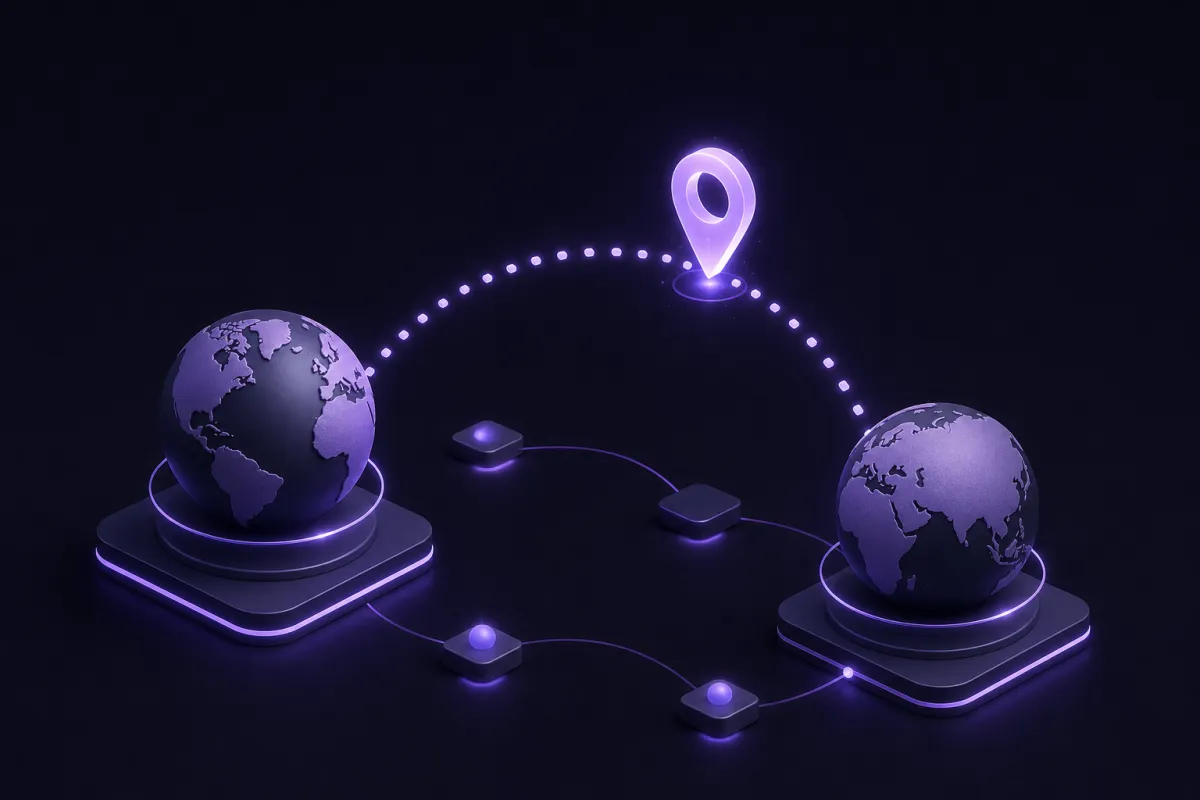
The fastest way to change IP address is to switch networks, reconnect through mobile data, or use a VPN server. If you need an IP address in another country, a VPN is usually the most practical option because it lets you choose a server location instead of hoping your ISP assigns something new.
There are several ways to get a different IP, but they do not all change the same thing. Some methods only change your private address inside your home network. Others change the public IP address that websites, apps and services see. This guide explains the difference, then walks through router restarts, Wi-Fi changes, mobile data, proxies, Tor and VPNs.
Public vs private IP address: what actually changes
Before choosing a method, it helps to know which IP address you are trying to change.
Your public IP address is the address the wider internet sees. It is usually assigned by your internet service provider to your home router, or by your mobile carrier when you use cellular data. Websites can use it to estimate your general location, apply regional settings, limit repeated actions, or flag unusual sign-ins.
Your private IP address is used only inside your local network. Your router gives private addresses to your laptop, phone, TV, printer and other devices. These often look like 192.168.x.x, 10.x.x.x, or 172.16.x.x. Changing a private IP can fix local network conflicts, but it will not change what most websites see.
Which one matters for privacy and location?
If your goal is to change how websites see you, you usually mean your public IP address. Restarting a router, switching networks, using mobile data, using a proxy, using Tor, or using a VPN can affect the public address visible to sites.
If your goal is to fix a home networking problem, such as two devices fighting for the same local address, you mean your private IP. That is usually handled in your device network settings or router admin panel, not with a VPN.
You can check the public address your browser is currently showing with Crispy VPN's What Is My IP tool. Check it before and after trying a method so you know whether anything actually changed.
How to change my IP without a VPN
If you only need a quick refresh, you may not need a VPN. These methods can work, but they depend heavily on your internet provider, mobile carrier and network setup.
Restart your router
Many home connections use dynamic public IP addresses. In that case, your ISP can assign a different address after your router disconnects and reconnects. It is not guaranteed. Some ISPs keep the same address for days, weeks, or longer, even after a restart.
- Write down your current public IP address using an IP checker.
- Turn off your router and modem, or unplug them from power.
- Wait at least a few minutes. Some users wait longer because short reboots often keep the same lease.
- Turn the equipment back on and wait for the connection to return.
- Check your public IP address again.
Pros: Free, simple and does not require installing anything.
Cons: Unreliable, cannot choose a country or city, and may not work at all if your ISP keeps you on the same address or uses carrier grade NAT.
Ask your ISP
Your ISP may be able to assign a new public IP, depending on your plan and network. Some providers make this easy. Others charge for address changes, only offer static addresses to business customers, or will not change it on request.
Pros: Can solve ISP-side address issues directly.
Cons: Slow compared with other methods, varies by provider, and does not give you flexible location choice.
Renew your local DHCP lease
On your computer or phone, you can renew the DHCP lease to get a new private IP from your router. This is useful if your device has a local network issue, but it usually will not change your public IP address.
Pros: Helpful for local connectivity problems.
Cons: Not useful for changing the IP address websites see.
Change IP address by switching networks or using mobile data
Every network has its own public IP address or pool of public addresses. If you leave your home Wi-Fi and connect through a different network, websites will usually see a different IP.
Switch to another Wi-Fi network
Connecting to your office network, a hotel network, a friend's home Wi-Fi, or a public hotspot can change your public IP immediately. The new address belongs to that network's internet connection, not yours.
Pros: Very quick, no account required, and useful when you only need a different address for a short task.
Cons: Public Wi-Fi can be risky, shared networks may have poor reputations, and you cannot choose the address or country. You should avoid sending sensitive information over networks you do not trust unless the connection is properly protected.
Use mobile data
Turning off Wi-Fi and using cellular data gives you an IP address from your mobile carrier. Toggling airplane mode can sometimes give you a different mobile IP when the phone reconnects, although carriers handle this differently.
Pros: Convenient, useful on the move, and separate from your home ISP connection.
Cons: Uses mobile data, may still show your general region, and may change unpredictably. It also does not help devices that lack cellular access unless you use a hotspot.
Use a phone hotspot
If your laptop needs a different IP, connecting it to your phone's hotspot can route traffic through your mobile carrier. This is a practical fallback when your home connection is having trouble or you want to test how a site behaves from another network.
Pros: Works for laptops and tablets without cellular hardware.
Cons: Can drain battery, use data quickly, and may be slower than home broadband.
Change IP location to another country with a VPN
A VPN is the clearest option when you want to change IP location rather than just refresh your address. Instead of connecting directly to a website, your device connects to a VPN server first. The website sees the VPN server's IP address, not your home or mobile IP.
If you want a deeper explanation of the basics, read what a VPN is. The short version is simple: your traffic travels through an encrypted tunnel to the VPN server, then continues to the destination site from there.
How to change your IP country with a VPN
- Choose a VPN app for your device.
- Sign in to your account.
- Pick a server location in the country you want.
- Connect to the VPN.
- Open an IP checker and confirm the new public IP and location.
Crispy VPN has apps for iPhone, iPad, Mac, Windows, Linux, Android, Apple TV, Android TV and Google TV, plus browser extensions for Chrome, Edge and Firefox. You can get the apps from the download page. One account works across devices, which is useful if you want the same general setup on your phone, laptop and TV.
Crispy VPN uses WireGuard on every server. WireGuard is a modern VPN protocol with a small code base, fast performance and good battery behavior on mobile devices. Crispy VPN also has 12 server locations, including options in Europe, North America and Asia Pacific, so you can choose a location that fits your task.
Pros: Lets you choose a country, works across many apps, protects traffic on untrusted networks, and is much more flexible than restarting a router.
Cons: A good VPN is a paid service, some sites may ask for extra verification after an IP change, and speed can vary by distance and server load. Crispy VPN costs $5.99 per month, or $35.88 per year, which works out to $2.99 per month, with a 30-day money-back guarantee.
A VPN is not magic invisibility. It does not make you anonymous, stop malware or phishing by itself, or prevent tracking by websites where you are logged in. It changes the IP address visible to sites and adds a protected tunnel between your device and the VPN server.
How to get a different IP address: proxy, Tor, or VPN?
Proxies, Tor and VPNs can all make a website see a different IP address, but they are built for different jobs.
Proxy
A proxy sits between your browser or app and the destination site. The site sees the proxy's IP address. Some proxies work only in one browser or one app, while others require manual setup.
Pros: Can be simple for browser-only tasks and may be lightweight.
Cons: Many proxies do not protect all device traffic, may not encrypt traffic end to end, and can be unreliable. Free proxies are especially risky because you may not know who operates them or how they handle data.
For a more detailed comparison, see VPN vs proxy.
Tor
Tor routes browser traffic through multiple volunteer-run relays before it reaches a site. The site sees the final exit relay's IP address. Tor is designed for privacy in the browser, not for whole-device convenience.
Pros: Good for separating your browsing path from your direct IP and does not require a paid VPN subscription.
Cons: Often slower, not designed for streaming or high-bandwidth everyday use, and only protects traffic routed through Tor. Some sites treat Tor exit traffic with extra checks because many people share the same exits.
VPN
A VPN usually protects traffic at the device level. When it is connected, apps use the VPN tunnel unless you configure exceptions with features such as split tunneling, where available.
Pros: Strong everyday balance of privacy, speed and convenience. You can choose a server location, use it across devices, and keep normal apps working.
Cons: Requires trusting the VPN provider and usually costs money. That is why logging policy matters. Crispy VPN keeps no activity logs, and its two-party relay design separates who you are from what you do.
How to check that your IP address changed
Do not assume your IP changed just because you restarted something or clicked connect. Check it.
- Disconnect from any VPN or proxy and visit /en/what-is-my-ip.
- Note the public IP address and displayed location.
- Use your chosen method, such as switching networks or connecting to a VPN server.
- Refresh the IP checker in a new tab or private window.
- Confirm that the public IP address changed.
- If you used a VPN to change country, confirm the location matches the server region you selected.
If the IP address did not change, clear the browser tab, reconnect the VPN or network, then test again. Some websites also use cookies, account history, GPS permissions, DNS settings and browser fingerprints to infer location. Changing your IP is important, but it is not the only signal a website may use.
If you are testing a VPN specifically, this guide to checking whether your VPN is working covers the usual signs, including IP and DNS behavior.
Troubleshooting when your new IP does not behave as expected
Sometimes the IP changes, but the result is not what you expected. Here are the most common causes.
The location looks slightly wrong
IP location databases are estimates. A website may show the right country but the wrong city, or place a mobile carrier address in a nearby region. If country matters, test more than one site, but expect some variation.
A website still shows your old region
The site may be using cookies, your account settings, browser language, GPS permissions, payment region, or cached location data. Sign out and back in, check site settings, disable browser location permission if appropriate, or try a fresh browser profile.
Your router restart did nothing
Your ISP may have reassigned the same address. This is common. Waiting longer before reconnecting may help, but there is no guarantee. If you need a predictable location change, use a VPN instead.
Your VPN is connected but one app still uses the old route
Check whether split tunneling is enabled. On Crispy VPN, split tunneling is available on Android by app, on iPhone and iPad by website up to 20 entries, and in browser extensions by website. If a site or app is excluded, it may not use the VPN connection.
Your connection drops while changing IP
A kill switch can help prevent traffic from continuing outside the VPN if the tunnel disconnects. Crispy VPN offers an opt-in kill switch on iPhone, iPad, Mac, Windows, Linux and browser extensions. On Android, use the system Always-on VPN and Block connections without VPN settings.